14 JULY 2026
How to remove deleted pages from Google
You deleted a page from your website.
Job done, right?
Wrong.
Go Google your business name and there it is — the deleted page, still sitting on Google search results, showing outdated information, broken links, or worse, content that was never meant to be indexed in the first place.
This is more common than you think. And it makes your business look unprofessional.
Here's how to fix it.
Why does Google still show deleted pages?
Google doesn't crawl your website in real time.
It crawls it periodically — sometimes weekly, sometimes monthly, depending on how authoritative your site is.
So when you delete a page, Google doesn't automatically know it's gone. It keeps showing the cached version it last saved until it crawls your site again and figures out the page no longer exists.
The problem? That could take weeks. Or months.
And in the meantime, potential customers are clicking on a dead link and getting a 404 error page.
Not exactly a great first impression.
Step 1: Make sure the page is actually returning a 404 or 410
Before doing anything, confirm what happens when someone visits that deleted URL.
- 404 means the page isn't found — the standard response for a deleted page
- 410 means the page is gone permanently — Google actually processes this faster than a 404
If you want Google to drop the page quickly, configure your server or CMS to return a 410 Gone response instead of a 404. Most WordPress plugins like Yoast SEO or Rank Math can help you do this without touching any code.
Step 2: Use Google Search Console to request removal
This is the fastest way to tell Google to stop showing a page.
- Go to Google Search Console
- Select your property
- Click Removals in the left sidebar
- Click New Request
- Paste the exact URL of the deleted page
- Select Remove this URL temporarily
- Submit
Google will typically process this within a day or two and suppress the URL from search results for about 6 months.
Note: this is a temporary fix. It hides the URL — it doesn't permanently remove it from Google's index. For permanent removal, you need to make sure the page stays deleted and returns a 404 or 410.
Step 3: Remove it from Google's cache too
Even after a page is removed from search results, Google may still have a cached version stored.
In Search Console, after submitting your removal request, also select Clear cached URL for the same page. This wipes the stored snapshot Google has of that page.
Step 4: Check for internal links pointing to the dead page
If other pages on your website are still linking to the deleted page, Google will keep trying to crawl it.
Go through your website and remove or update any internal links that point to the old URL. If you've moved the content to a new URL, set up a 301 redirect from the old URL to the new one instead of deleting it outright.
A 301 redirect tells Google: "This page has permanently moved here." It passes all the SEO value to the new URL and prevents any dead-end 404 errors for visitors.
Step 5: Submit an updated sitemap
After cleaning everything up, go back to Google Search Console and resubmit your sitemap.
This tells Google to re-crawl your entire site with the latest structure — speeding up the process of recognising which pages exist and which don't.
Settings → Sitemaps → Enter your sitemap URL → Submit
Your sitemap is usually found at yourdomain.com/sitemap.xml. If you're on WordPress, plugins like Yoast or Rank Math generate this automatically.
What about pages you didn't even put there?
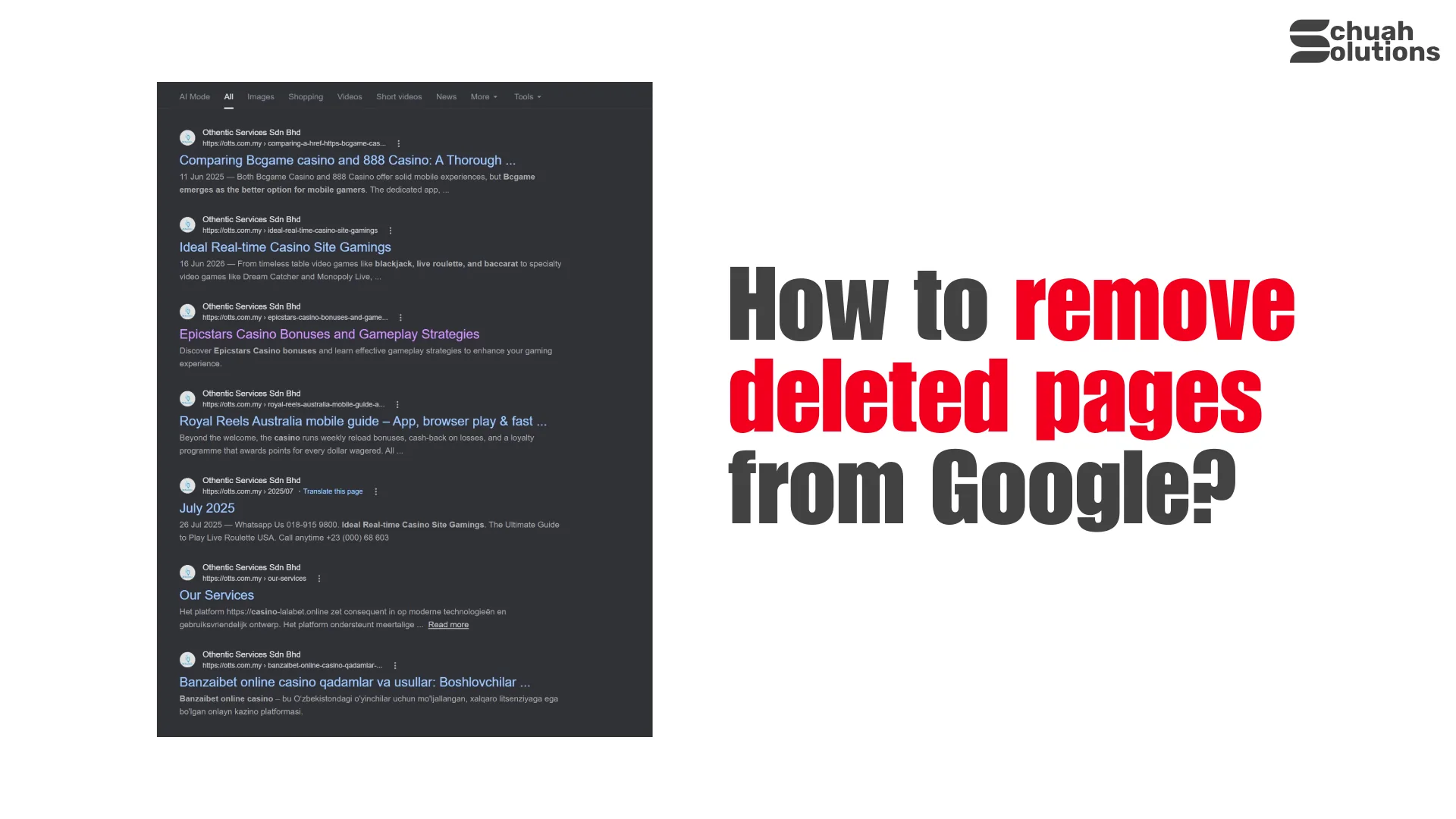
Look at the screenshot above.
That's a real example of what happens when a website gets hacked or injected with spam content — casino pages, gambling links, foreign language pages — all indexed under a legitimate Malaysian business domain.
If you're seeing pages on Google that you never created, that's not a deleted page problem. That's a security breach.
Your website has been compromised and spammers are using your domain's SEO authority to rank their garbage.
If this happens to you, stop what you're doing and:
- Immediately scan your website for malware
- Change all admin passwords
- Contact your web developer or hosting provider
- Use Google Search Console to request removal of every injected URL
- File a spam report with Google
This is not something to ignore. Every day those pages stay indexed, your domain reputation takes a hit — and Google may eventually penalise your entire site for it.
What Now?
Deleted pages, broken links, spam injections — all of these quietly destroy your SEO and make your business look amateur online.
We manage and maintain WordPress websites for small businesses in Malaysia — including SEO cleanup, security monitoring, and making sure what shows up on Google actually reflects your business properly.
RM375/month. No downpayment. No hidden fees. No BS.
Contact us below. NOW.